Programming Your Handheld with CHIRP Without Breaking It
Front-panel programming is why most handhelds sit unused. CHIRP turns an hour of menu diving into five minutes, provided you do the steps in the right order.
The five minutes that rescue a radio
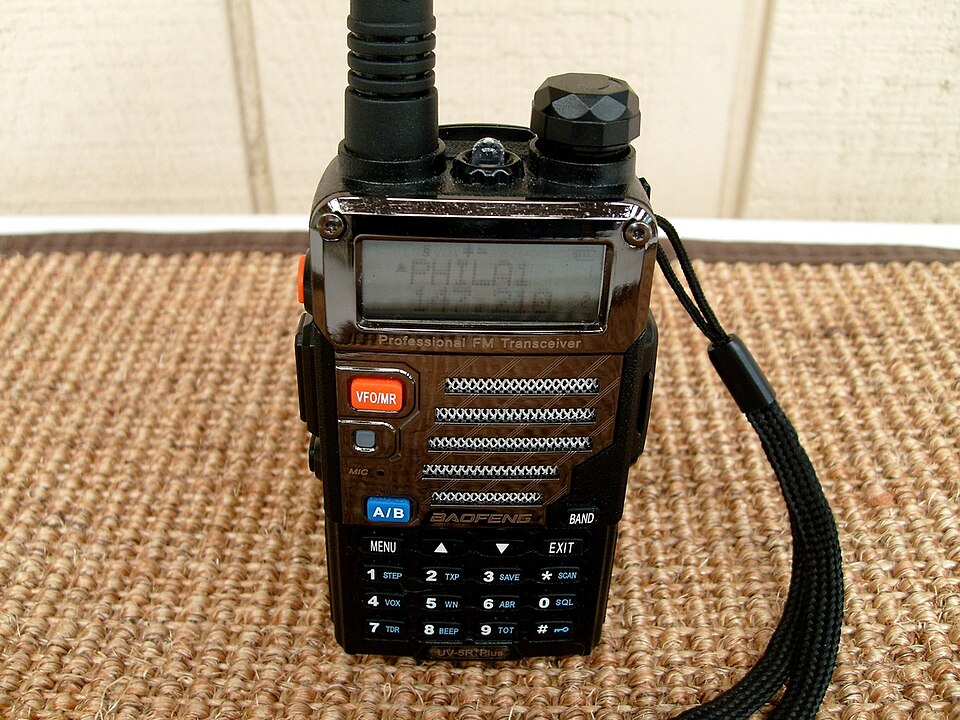
There is a particular kind of drawer in a particular kind of house, and in it sits a dual-band handheld that was used twice. The radio works fine. The reason it stopped being used is that entering a repeater into it from the front panel requires navigating eleven menu items in an order nobody can remember, and getting one of them wrong produces a radio that transmits into silence. Faced with that, most people give up and the radio goes in the drawer.
CHIRP solves this completely. It is a free, cross-platform program that reads your radio's memory into a spreadsheet, lets you edit it with a keyboard, and writes it back. A memory plan that would take two hours to enter by hand takes five minutes to type and thirty seconds to upload. The order of operations matters, though, and getting it wrong is how people end up with a radio that needs a factory reset.
What CHIRP is and is not
CHIRP is a memory editor. It manages the channel list, names, offsets, tones, power levels, and scan settings. It does not repair firmware, unlock frequency coverage, or fix hardware faults, and it does not turn one model into another. Support for each radio comes from a driver that a volunteer wrote by reverse-engineering that model's memory layout, which means support is excellent for popular models and occasionally quirky for obscure ones.
Two practical consequences follow. First, always download the current version rather than an old one somebody mirrored years ago, because drivers get fixed continually. Second, select exactly your model and firmware variant when connecting. Choosing a similar-looking model from the same manufacturer is the most common way to write a malformed memory image into a radio.
Getting the cable working
The programming cable is where nearly all frustration lives, and the cause is almost always the USB-to-serial chip inside it. Cheap cables use counterfeit chips that some operating system drivers deliberately refuse to talk to. If your computer sees no serial port when the cable is plugged in, the cable is the problem, not CHIRP.
Buy a cable that names its chipset, or buy from a vendor with a reputation among operators. On Windows, check the device manager for a COM port appearing and disappearing as you plug the cable in. On Linux and macOS, look for a new device node appearing in the system log. Push the plug fully into the radio, which on many models takes more force than feels correct, and make sure the radio is switched on with a charged battery and the volume turned up, because some models use the audio path for data.
Read first, always
Before you change anything, download the image from the radio and save it to a file with the date in the name. This is not optional advice. That file is your recovery point, it captures factory calibration settings that live in the same memory region on some models, and it gives CHIRP the exact structure it needs to write back safely.
Then work on a copy. Edit the copy, upload the copy, and keep the original untouched. If a write goes wrong, and occasionally one will, uploading the original file restores the radio to exactly its previous state in under a minute. Operators who skip this step are the ones posting for help with a radio that no longer transmits.
Building a codeplug that makes sense
Resist the temptation to fill all 128 memories. A memory plan you can navigate with the up and down keys is worth far more than an exhaustive one. Most operators end up with something like this: the local repeaters you actually use in the first block, national and regional simplex calling frequencies next, the local emergency and weather channels after that, and satellite or special-event frequencies at the end.
Name channels for how you will think about them in the field, not by frequency. A channel called SOUTHRPT is findable at a glance; one called 146.940 is not, especially on a small display in bright sun. Group related channels in consecutive slots so that scanning a block gives you a meaningful set. Set power level per channel where the radio supports it, so that hitting a distant repeater does not require remembering to change a global setting.
Offsets, tones, and the fields that trip people up
Four columns cause nearly every failed contact. Duplex sets whether the transmit frequency is above the receive frequency, below it, or the same, and the offset sets by how much. On 2 meters in most of the world the standard is 600 kHz, and on 70 centimeters it is 5 MHz, but regional plans differ and the repeater directory is authoritative. The HAMSTATION repeater offset calculator will confirm the transmit frequency for a given input and shift so you can sanity-check a row before uploading it.
Tone mode is the other half. A repeater that requires a subaudible access tone will ignore you entirely if you transmit without it, and the failure is silent, which is why new operators conclude the repeater is out of service. Set tone mode to Tone for transmit-only access tones, and only use TSQL if you deliberately want your receiver muted unless the incoming signal carries the matching tone. Getting this backwards produces a radio that appears deaf. If a repeater listing shows a DCS code rather than a tone, use the DTCS mode instead.
Backups and the recovery you will eventually need
Keep your CHIRP files in the same place you keep the rest of your station records, with dates in the filenames, and export a CSV copy as well. CSV is plain text, it survives driver changes, and it can be re-imported into a different radio model in minutes, which is exactly what you want on the day you buy a new handheld or lend a configured radio to a newly licensed friend.
Recheck the plan once a year. Repeaters change tones, get coordinated to new frequencies, or go off the air, and a memory plan that silently rotted is indistinguishable from a broken radio at the moment you actually need it. Fifteen minutes with the current repeater directory, a fresh upload, and a quick on-air test of each local machine is the whole maintenance routine, and it is the difference between a radio you trust and one that goes back in the drawer.
Every HAMSTATION tool runs entirely client-side. No accounts, no tracking, no server storage.
Open the toolkit →